Navigate and select artwork
Use the canvas to arrange posts, compare layouts and focus the artwork you want to change.
Pan, zoom and fit
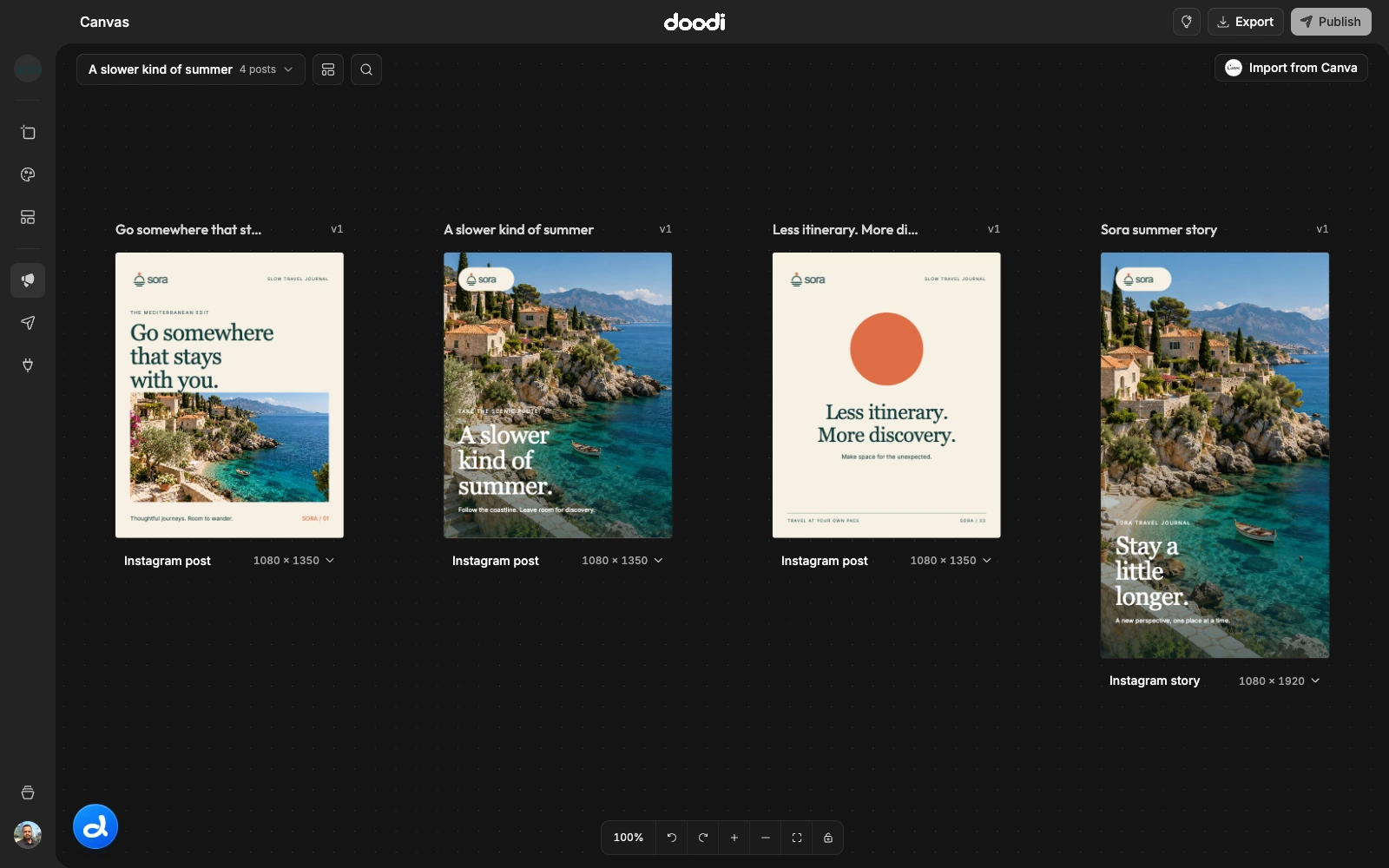
Use the canvas’s normal trackpad or mouse gestures to navigate. The bottom toolbar includes zoom in, zoom out and Fit view. Fit view brings the current artwork into the available workspace. The zoom percentage describes your view, not the export resolution.
Move a post or a layer
Drag a post by its header to reposition the whole artboard on the canvas. Click inside artwork to select a supported editable layer, then drag the layer to change its position inside the design. These are different actions. See move, resize and rotate layers.
Select designs
Select the post you want to export, resize or publish. Use the canvas’s multi-selection controls for several posts. The selected context also matters to Doodi: an instruction about “this post” applies to the current selection. Clear it when you want to start unrelated work.
Find a post helps locate an artboard by name. Rename a post by double-clicking its title, using its rename action, or pressing Enter/F2 while the title is focused. Names are separate from the text inside the artwork.
Context actions
Right-click a post or use its actions to annotate, rewrite, redesign, duplicate, clone in other sizes or view history. Campaign designs also offer publishing review. During annotation, right-clicking a layer shows layer actions instead of the general post menu.
Undo and redo
Canvas Undo and Redo cover supported canvas changes. Layer editing has its own session controls, and saved designs also have version history. If a newer edit causes a conflict, read the latest state before trying to restore an older action.