Annotate a design
Annotations connect a written instruction to a specific text layer, image or area of artwork.
Mark the target
- Select the post and choose Annotate, or use Annotate design in its actions.
- Click a rendered element to target it, or drag a rectangle over an area.
- Type the requested change in the nearby comment box.
- Choose Add comment.
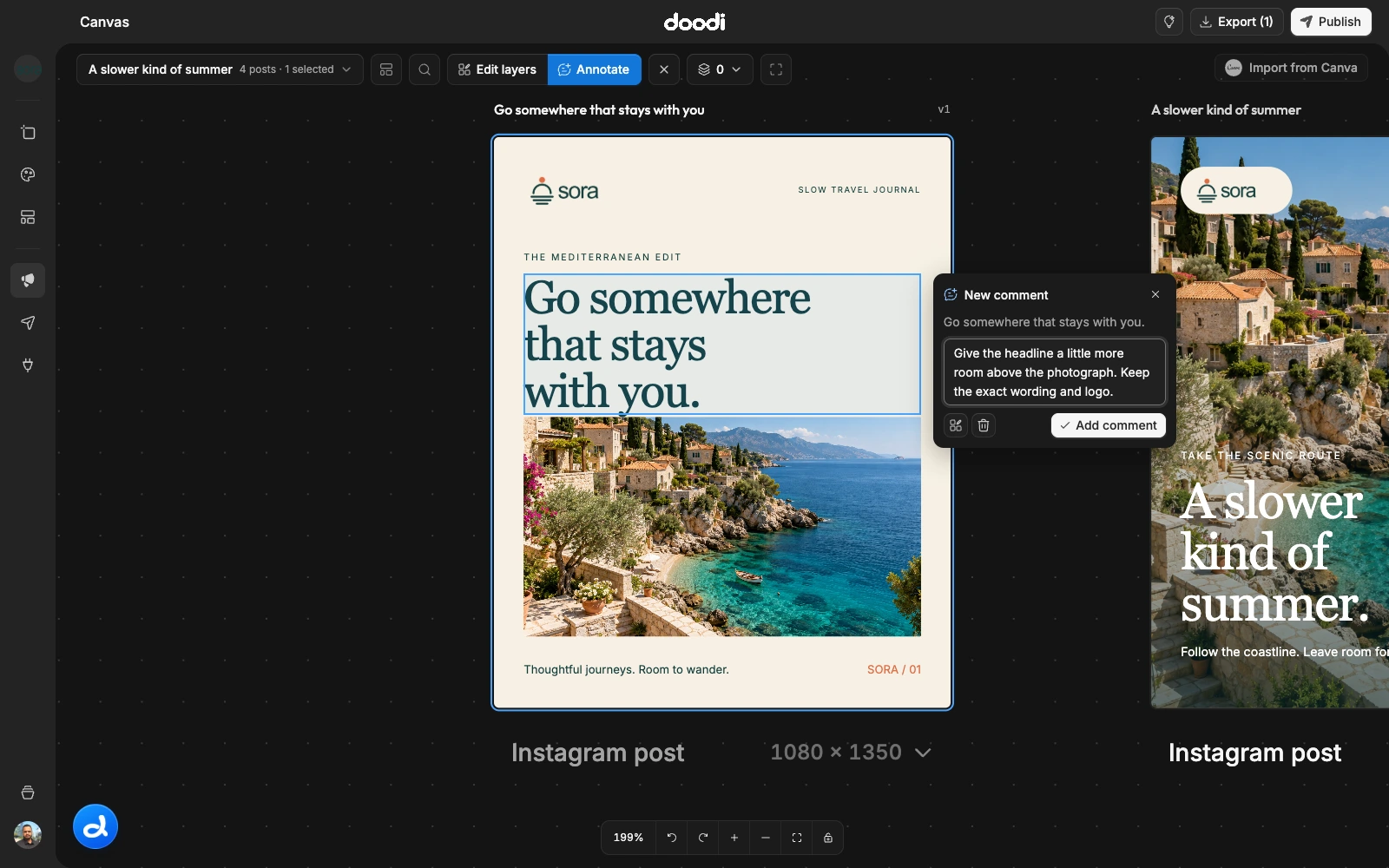
Build a set of edits
Add more comments before sending. Saved or edited comments appear in Doodi’s composer, and deleting a comment removes it from that queue. You can review annotations on up to four posts in one message. Draft comments survive closing annotation and reloading.
Be specific: “Increase the spacing between these lines” is clearer than “Make this better.” Include exact replacement copy when wording matters.
Image actions
For an image target, Change image opens the current project’s library and saves the chosen replacement directly. Regenerate with AI adds a scoped request for review in Doodi. Add the visual instructions before sending.
Direct edit
Use Direct edit to change supported layer properties yourself while retaining the annotation draft. Done saves pending edits and returns to annotation. If a target cannot be matched after a structural change, review the saved comment before sending it.
Send and exit
Review the queued comments in Doodi and send when ready. Successful sends retain the marked previews and comments in chat history. Annotation focuses the design and locks canvas navigation temporarily. Escape first clears a selected target and then exits; a contextual menu closes before either action.