Import from Canva
Bring a Canva design into a campaign or Template studio as editable Doodi artwork where the source format supports it.
Choose a destination
Open a campaign, the template library or a template editor and choose Import from Canva. An import creates new designs. It does not replace the currently open template.
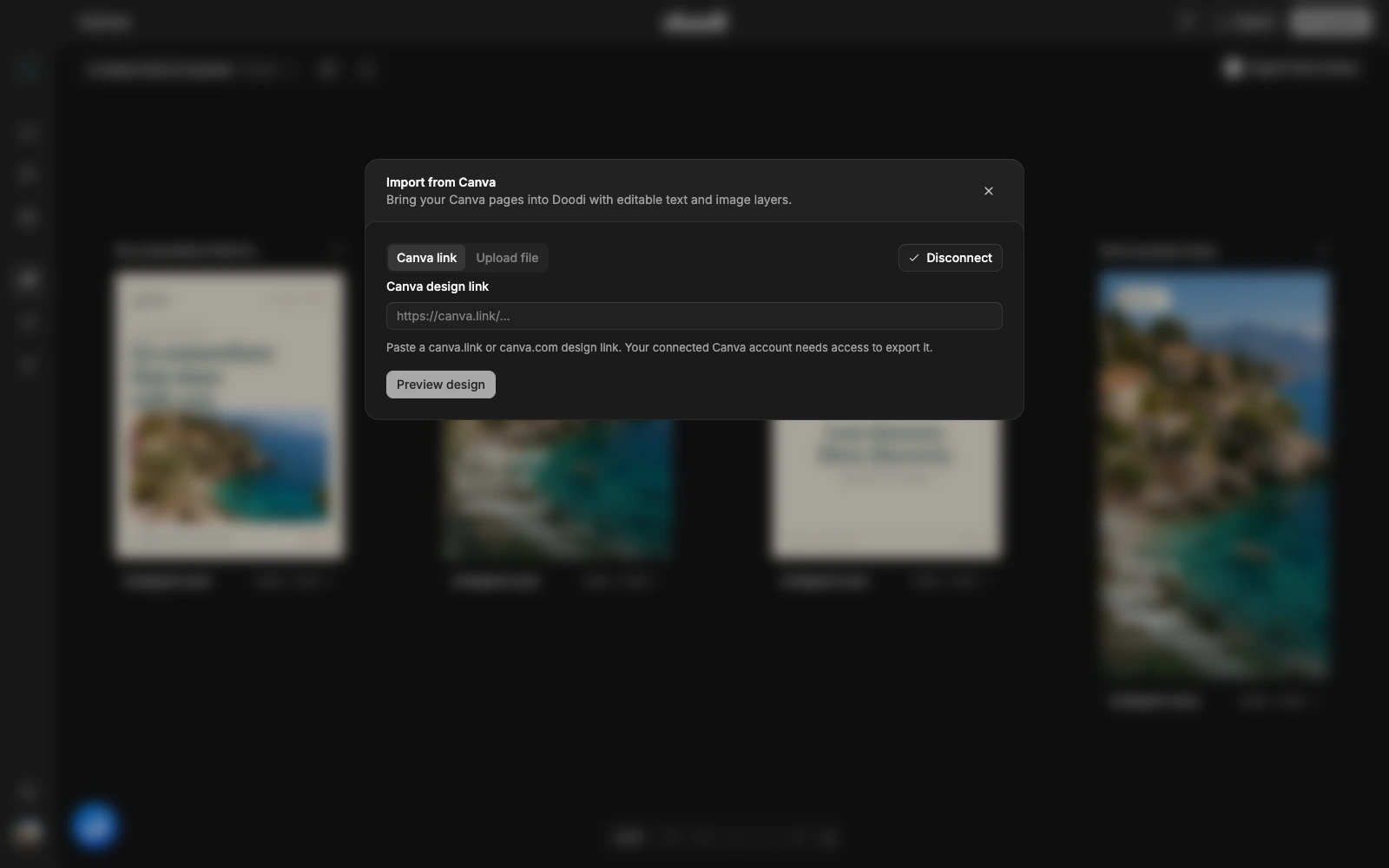
Import a Canva link
Use the Canva link tab. Connect your Canva account through the browser if prompted, then paste a supported Canva design or short link. Preview the export, review warnings, select pages and import.
The connection is associated with your Doodi account and can be reused across its projects. It can be disconnected from the import dialog. Canva access depends on the integration’s availability and provider approval; use file upload if your account cannot connect.
Import a file
For the best supported Canva export, choose PDF Print, use RGB, and turn off Flatten PDF and Crop marks and bleed. Then upload the file in Doodi. PowerPoint exports are also accepted, but may omit shadows or text backgrounds.
Review every page before selecting it for import. Limits are 25 MB per file, up to 20 pages, and 100–4096 pixels per side. Previews expire after 30 minutes; reopen the file if a preview has expired.
What remains editable
Supported text remains text, images become separate image layers, and paths become vector elements. Paragraphs can arrive as separate lines. Some effects become image layers to preserve their appearance.
Flattened or outlined text cannot be recovered as editable text. Complex shaping, blending or masking can be unsupported. Read the preview’s explanation rather than accepting a broken reconstruction. A subset font may lack new characters; select another font in Properties if needed.
After import
Open the saved design and test a text change, image selection and Undo. Import is a one-time conversion. It does not synchronize later changes with Canva and does not use OCR to recover flattened text.