Version history and recovery
Saved revisions let you inspect previous artwork and restore a version when a later edit is not what you intended.
Inspect versions
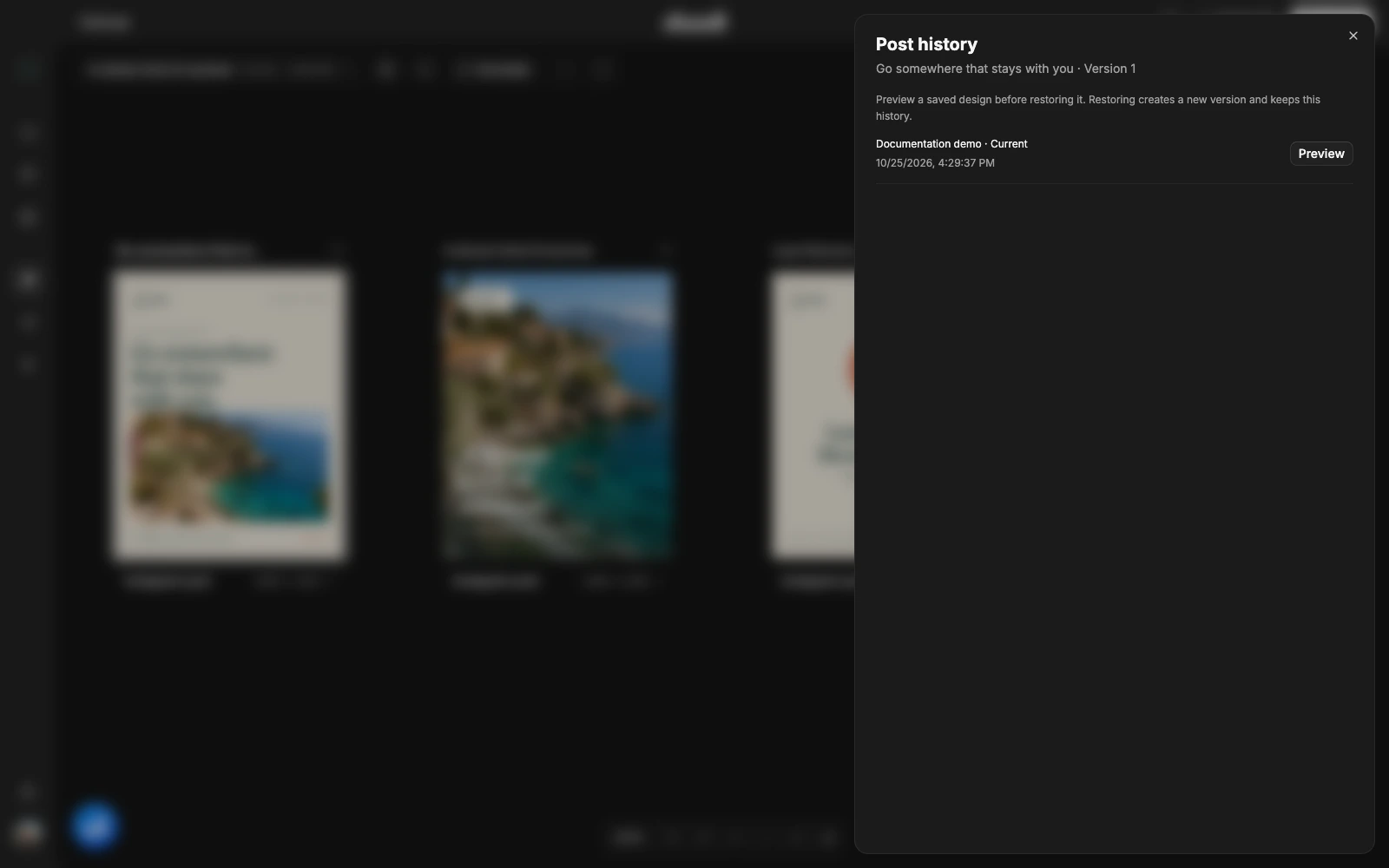
Open a post’s actions and choose Version history. Review the saved entries and their previews. A revision records the artwork source, editable content, caption and dimensions at that point in time.
Restore an earlier design
Choose the version you want and use its restore action. Doodi saves the restored content as a new revision. This preserves a record of the restoration rather than silently changing an earlier version.
Check the rendered design after restoring. Confirm the headline, image, caption, dimensions and any linked variants before exporting or submitting it.
Undo versus history
Use session Undo for a recent layer movement or property change. Use canvas Undo for supported canvas operations. Use version history when you need to return to an older saved design or compare changes across sessions.
Conflicts and failed saves
If a design changed elsewhere while you were editing, the app may ask you to Reload latest or Load latest version. Read the warning before discarding a local draft. Do not repeatedly overwrite a conflicting version.
A failed save is different from a failed preview. For a save failure, keep the editor open and use Retry. For a missing image or preview error, use the preview’s recovery controls. Previously submitted social posts do not automatically update when you restore the design.