Change size and create variants
Choose an artboard size for its intended destination, then inspect the adapted layout before exporting or publishing.
Resize a design
Use the format control beneath the post. Select the new social size and let Doodi adapt the layout. The change creates a saved revision. The artwork may show an adaptation state while text, images and spacing are fitted to the new dimensions.
For several selected posts, use Resize selected. Each post keeps its own copy and identity while Doodi adapts its layout. Inspect every result; a successful resize of one post does not prove the others are finished.
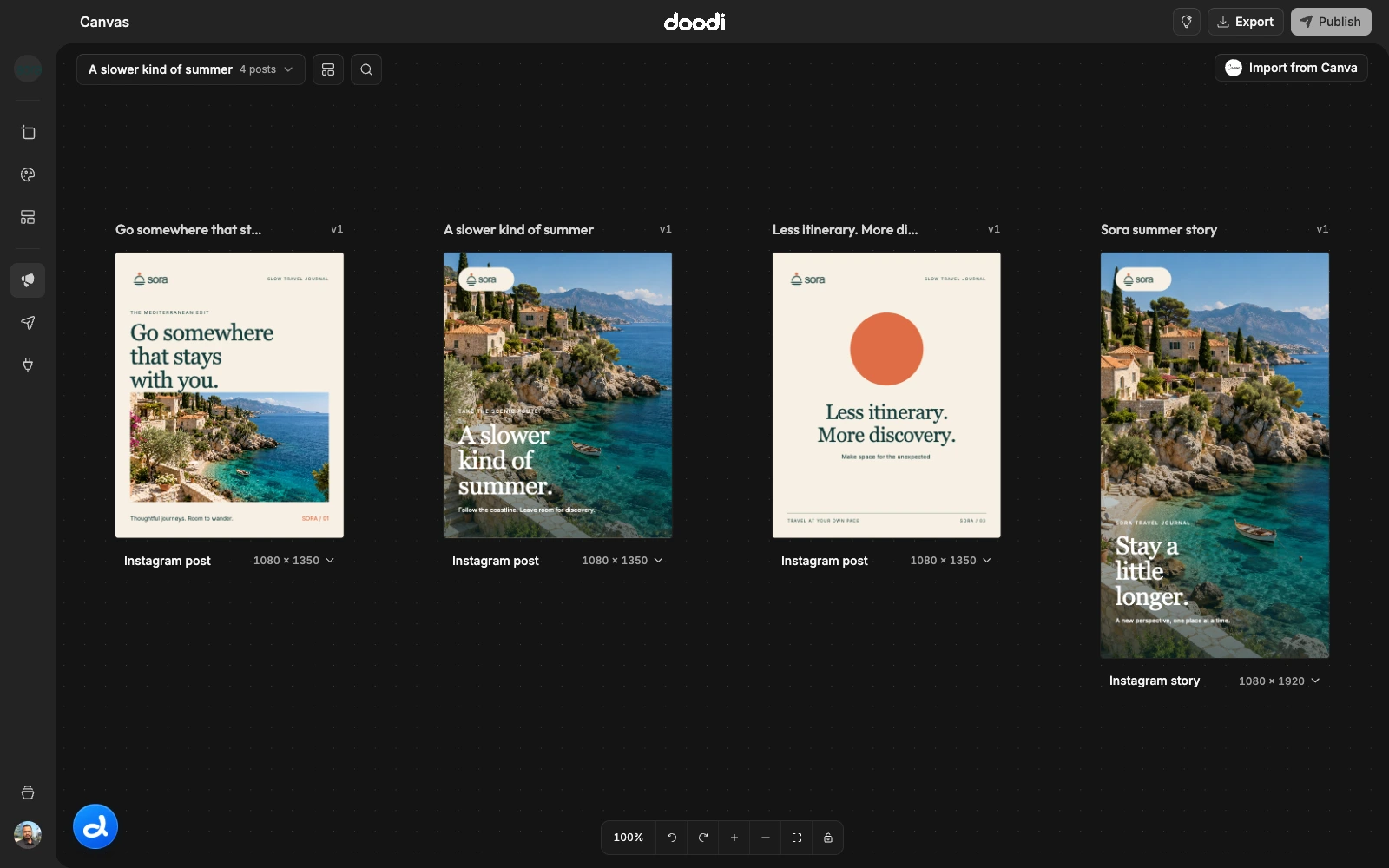
Keep the original size
Choose Clone in other sizes… from the post actions to create additional size variants. Select the needed destinations. Each resulting design has its own dimensions and revision history. The size-cloning flow creates linked children. Parent edits sync to them, while each child keeps its size and platform choice.
Linked variants
Linked children can wait for synchronization with their parent. A pending or failed sync means the child is not ready for export or publishing. Complete or retry the adaptation and review the final saved artwork. Publishing review can include linked children, so check the inclusion list and destination for each image.
When adaptation fails
Use Retry adaptation on the affected design. Keep the original caption, logo and facts in view when reviewing the retry. A format label alone is not evidence that the design fits.
The artboard sizes reference lists all built-in presets. A vertical artwork is an image; selecting a Reel or TikTok cover size does not create a video.