Your template library
Templates store reusable layouts for one project. They are separate from campaign posts and cannot be published directly from the library.
Browse saved templates
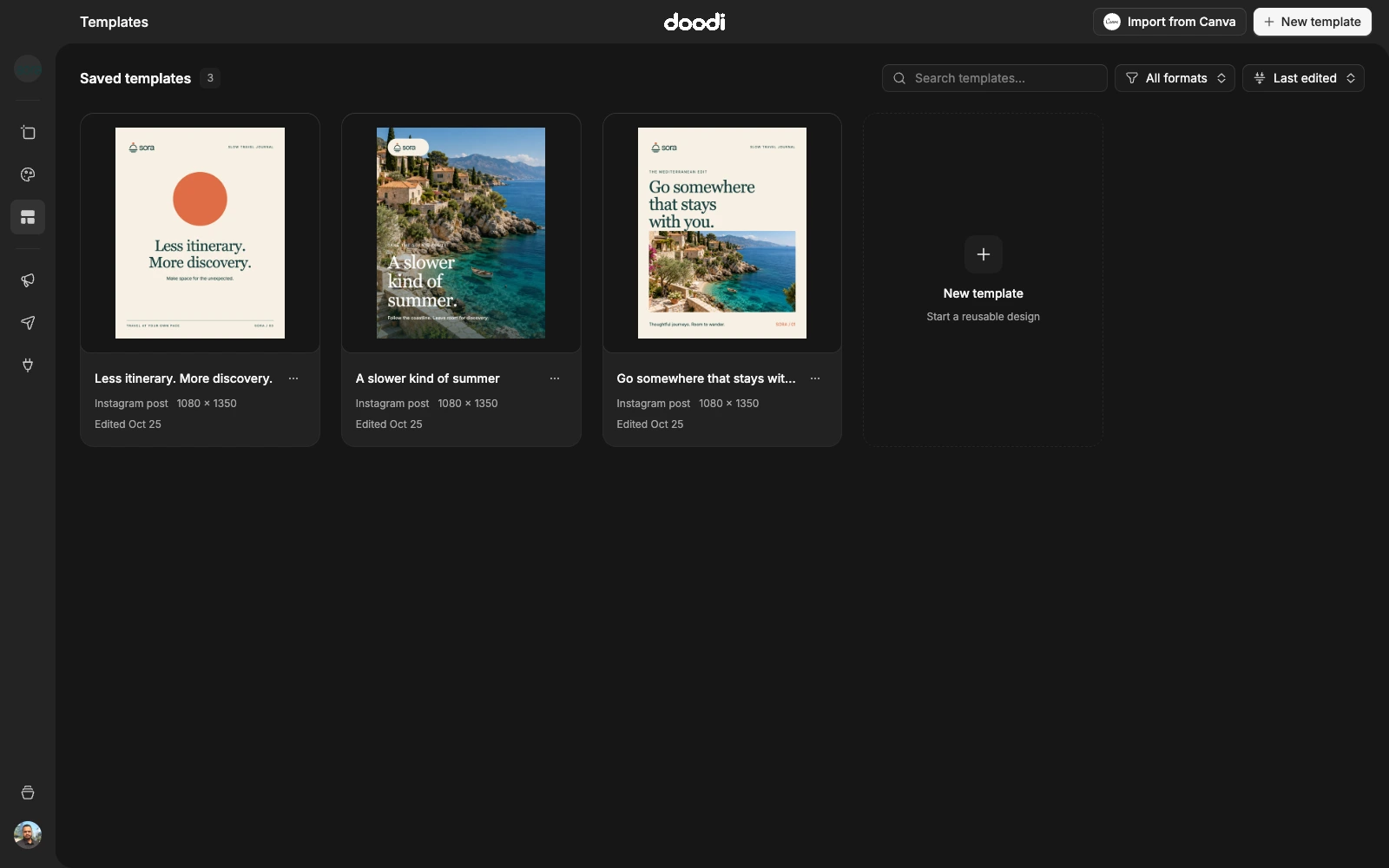
Open Templates in the navigation rail. The grid shows complete artwork previews, names, formats, dimensions and edit dates. Search by name, filter orientation and sort by last edit, name or oldest first.
Create a template
Choose New template, name it and select a format. Open it in Template studio and tell Doodi what the reusable layout should do. Provide sample copy that represents the lengths you expect to use.
Create a reusable travel editorial layout with an editable headline, short supporting line, photo and original logo. Use the project’s approved palette.
You can also import a Canva design into the template library. Review its editable layers before relying on it for future campaigns.
Template actions
A template’s actions open the studio, add an independent copy to a campaign, duplicate it or delete it after confirmation. A duplicate is useful when you want a second layout direction while retaining the original.
Keep the library useful
Name templates by purpose or composition rather than by the campaign that first used them. Maintain a range of layouts that suit your usual content. Doodi can inspect the project’s templates and choose suitable ones when asked to create campaign posts.
Template changes affect the saved template. Existing campaign copies remain independent. See Use in campaign for the copying workflow.