Find your way around
Doodi separates brand setup, reusable artwork, campaigns and publishing so each task has its own workspace.
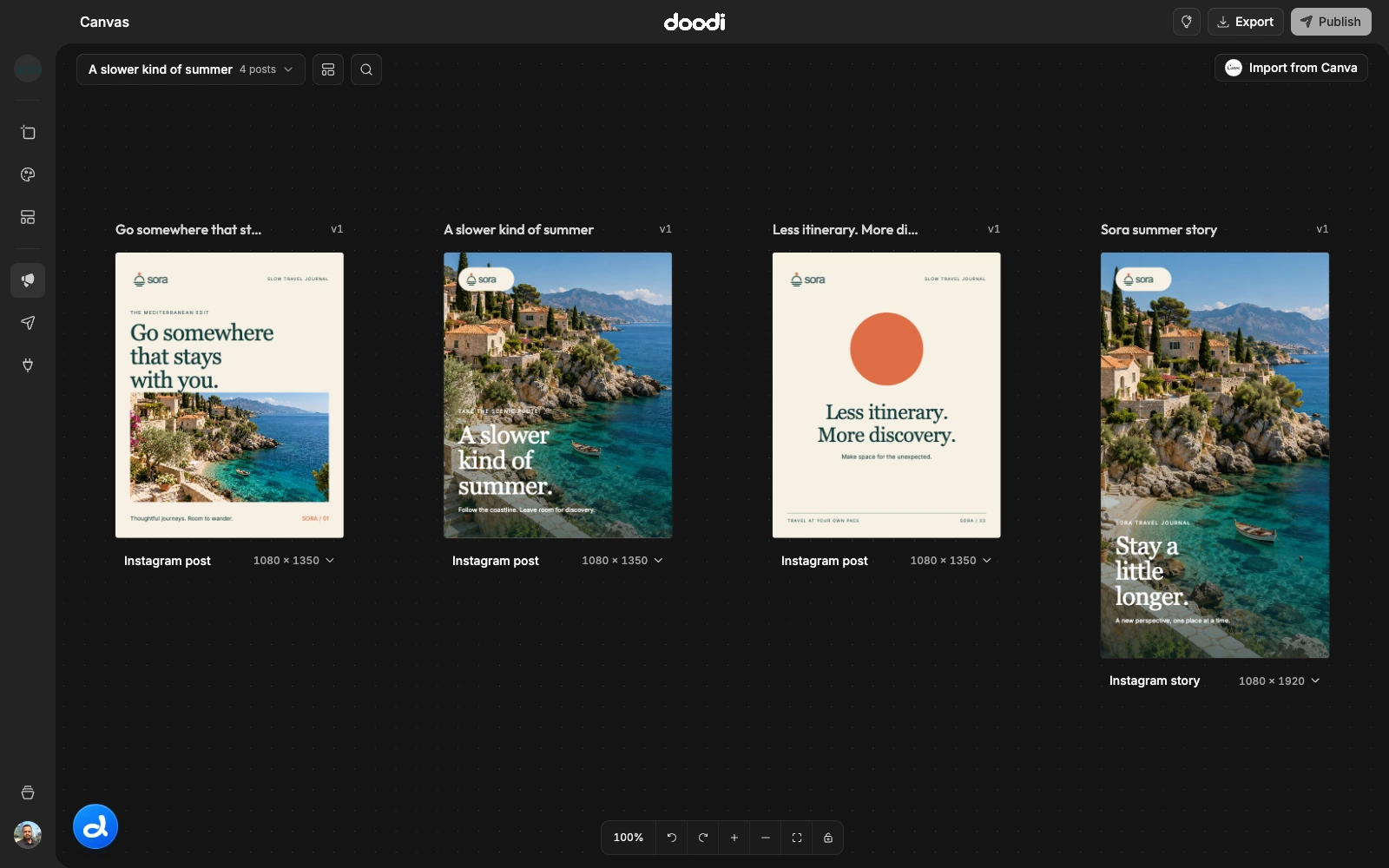
The navigation rail
The project avatar selects the current brand. The rail then opens Project canvas, Brand & assets, Templates, Campaigns, Publishing and Apps. Manage projects and account controls sit near the bottom. Hover an icon to read its label.
Switching projects keeps you in the corresponding project area when possible. Check the current project before uploading media, generating designs or connecting a social profile.
Campaign canvas
The canvas contains movable post artboards. Their headers show names and revisions; their size controls show the selected format. The bottom controls zoom, fit the artwork and manage canvas undo/redo. The toolbar opens inspiration, export and publishing review.
Doodi panel
Open the blue Doodi button to chat. The panel stays beside the canvas so you can inspect artwork while asking for changes. Minimize it with its close button to regain space; this preserves your conversation and draft. Chat history and a new-chat control sit in its header.
Contextual controls
Clicking artwork selects an editable layer. Right-click a post or use its actions menu for annotation, rewrite, redesign, duplication, size variants and version history. Available actions depend on the current selection and whether Doodi is busy.
Account settings
Open your account to manage General, Security, Agent connections, License & devices and Software updates. Use keyboard shortcuts for frequently used controls. Shortcuts act in the current workspace, so the same key can serve different contexts.