Edit in Template studio
Template studio keeps Doodi, the artboard and properties visible together for reusable design work.
The three panels
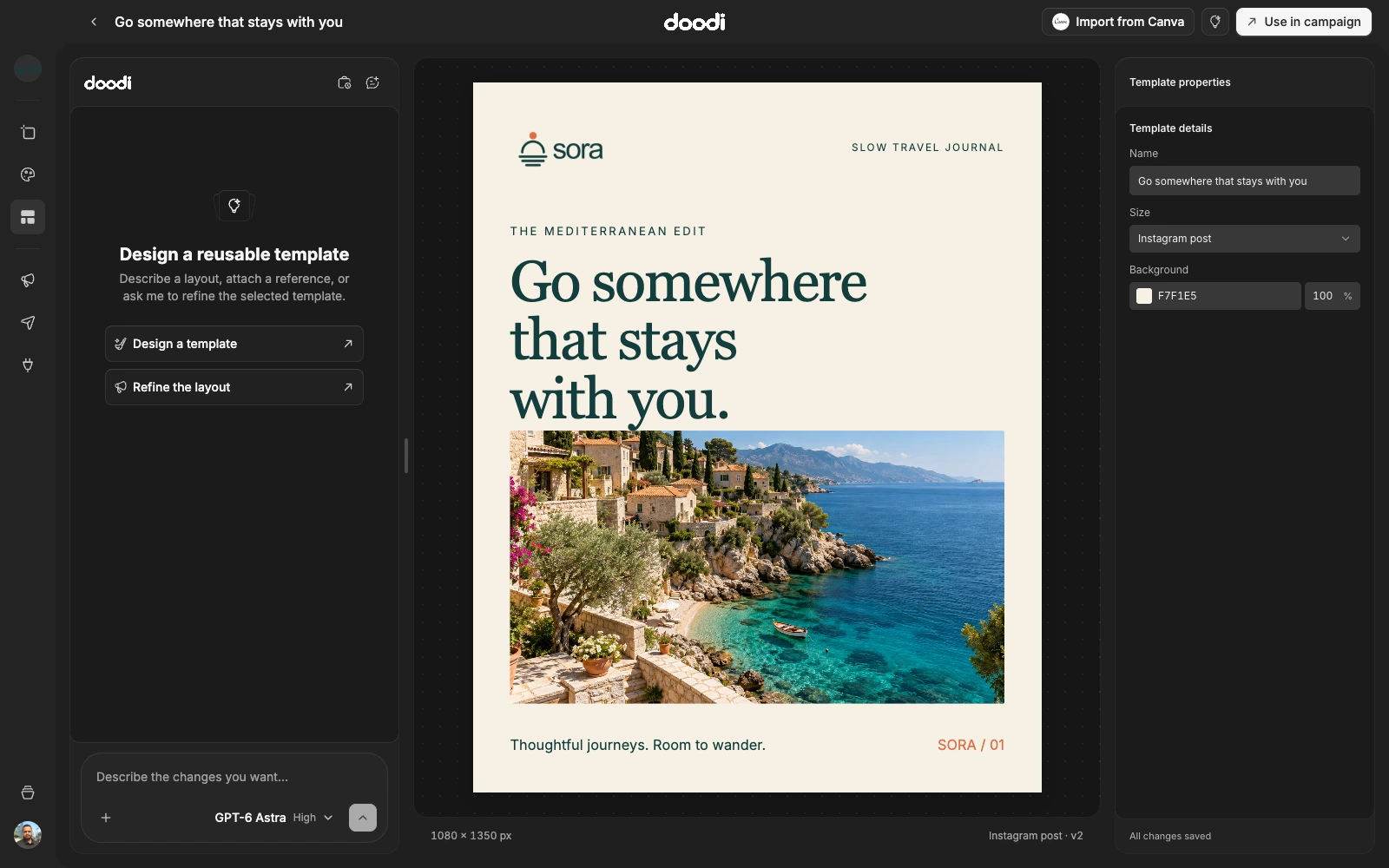
Doodi sits on the left, a proportional artboard occupies the center, and properties sit on the right. The toolbar includes Back, the live template name, inspiration and Use in campaign. On smaller windows, panels use tabs or drawers.
General template settings
With no layer selected, Properties shows the template name, size and artboard background. Use the background picker to set a color, opacity or transparency. That artboard setting follows campaign copies and exports.
Settings save automatically. There is no separate manual Save button. Check errors before leaving the editor; a failed or invalid edit retains its draft and offers Retry.
Select and edit an element
Click a text or image layer to open its contextual properties. You can edit it directly, move it, resize it or rotate it where supported. The selected item also appears in Doodi’s composer, so a request can target that exact element.
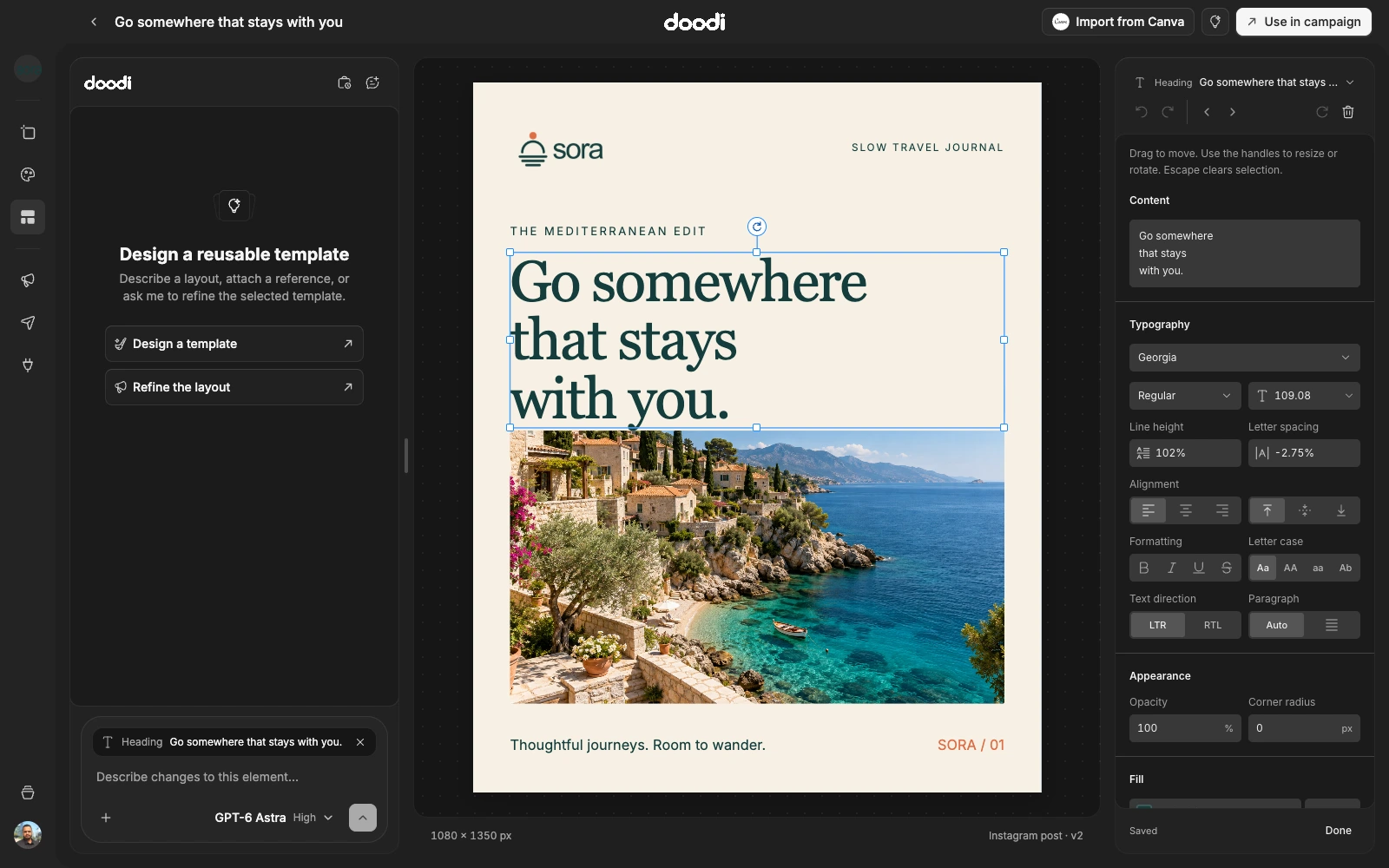
Changing the selected element updates the composer target while preserving your draft. Clicking the surrounding canvas or pressing Escape clears the selection after pending changes are saved.
Ask Doodi for changes
Type in the main composer rather than looking for a separate AI field in Properties. Pending edits are flushed before the selected element is sent as context. Area selections can also guide a request.
Doodi can write a caption during template creation or content changes. General template settings do not include a caption field; ask for exact caption wording in chat. Unrelated visual edits preserve an existing caption.
Leave or reuse
Back and Use in campaign finish pending saves before navigating. If another revision conflicts with a local draft, review Load latest version before discarding your changes.